
The ED-SCREEN software is designed to prioritize lists of chemicals according to their potential to interfere with EATS (Estrogen, Androgen, Thyroid and Steroidogenesis) pathways.
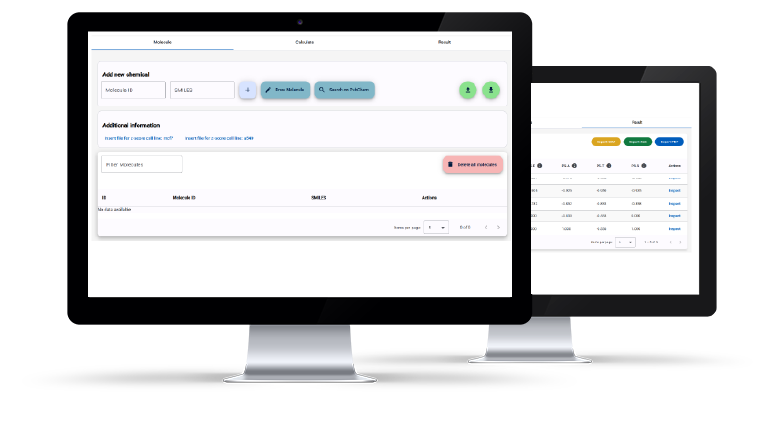
The software integrates predictions from 15 in silico models:
The ED-SCREEN workflow integrates predictions from multiple QSAR models, taking into account the reliability of each prediction. Highly reliable predictions are assigned greater weight, while less reliable predictions are not discarded but contribute with a lower weight. This integration process combines information from different models into a single integrated score, providing a comprehensive basis for prioritizing chemicals according to their potential endocrine-disrupting activity.
Thyroid
- 2 thyroid receptor (TR) perturbation models based on structural alerts
- 2 TR antagonist models based on transcriptomic data
- 1 descriptor-based thyroxine-binding protein (TTR) binder model
- 1 descriptor-based DIO1 inhibition model
- 1 descriptor-based TPO inhibition model
Androgen Receptor (AR)
- 1 SA-based model
- 2 transcriptomics-based models
Estrogen Receptor (ER)
- 2 descriptor- and structural alert (SA)-based models
- 2 transcriptomics-based models
Steroidogenesis
- 1 descriptor-based model
How to install and run the tool
ED-Screen is a Docker-based application designed to work as a standalone tool on a local machine. To use it, you should have Docker (https://www.docker.com/) installed or, on Windows machines, Docker Desktop (https://www.docker.com/products/docker-desktop/).
Windows users
Before using the application, please run install.bat and wait until it finishes. This will install all the Docker container images required by the application on your machine.
To use the application, launch run.bat. This will start the application backend, after which your default web browser should open automatically with the ED-Screen interface. If this does not happen, please open your web browser and go to http://localhost:7968/.
Please DON'T close the command-line window opened by run.bat. To close the application, go to that window and type Q as indicated. The application will then shut down.
Linux users
Install the images for the application with the following commands:
docker load -i eds_backend.tar
docker load -i eds_db.tar
docker load -i eds_frontend.tar
docker load -i eds_python.tar
When this is done, start the application from the application folder with the following command:
docker compose up -d
Once the application is running correctly, open any web browser and go to the local address http://localhost:7968.
Please note that the application will continue running in the background even if you close your browser. To shut down the application, run the following command from the application folder:
docker compose down